
Patient Registration/Intake User Guide
This guide covers the standard workflow for Patient Intake/Registration
Step 1: Navigate to "Create Report"
Click on "Create Report" to navigate to the page where all of the forms are available.

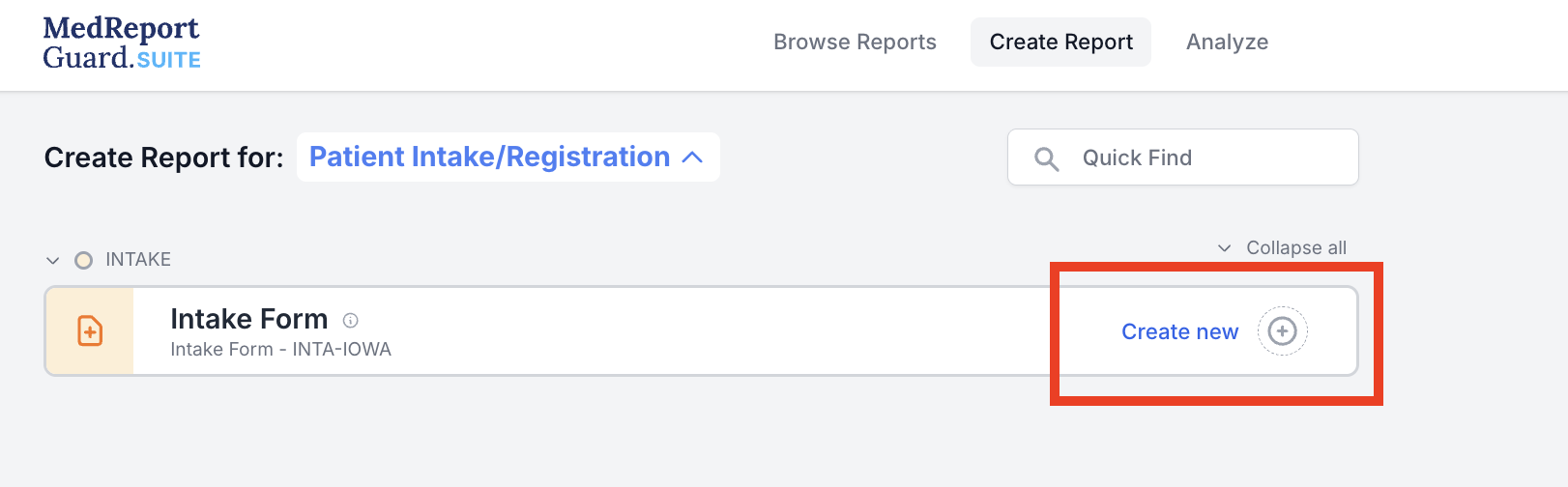
Step 2: Find and Create a New Intake Form
Click "Create New" to generate a new Intake Form.
Step 3: Complete Section A
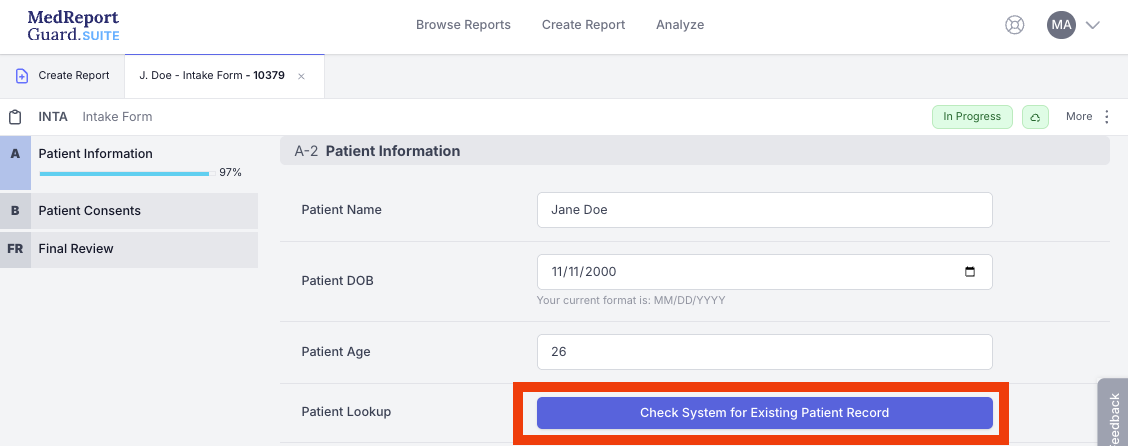
Begin completing Section A. If we would like to check if a patient has previously been seen by Iowa SAFE, if the patient name and DOB are provided, we can search to find previous records:
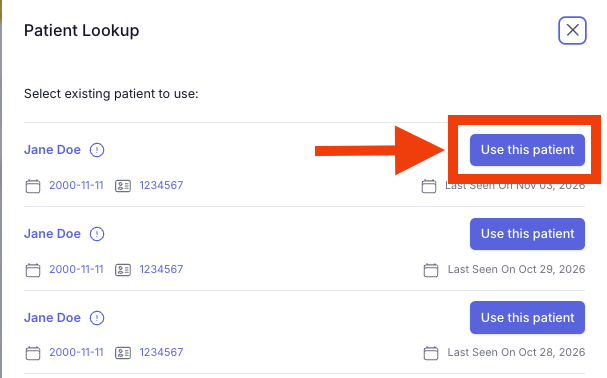
You can then use this patient's information to complete the remaining demographic information:
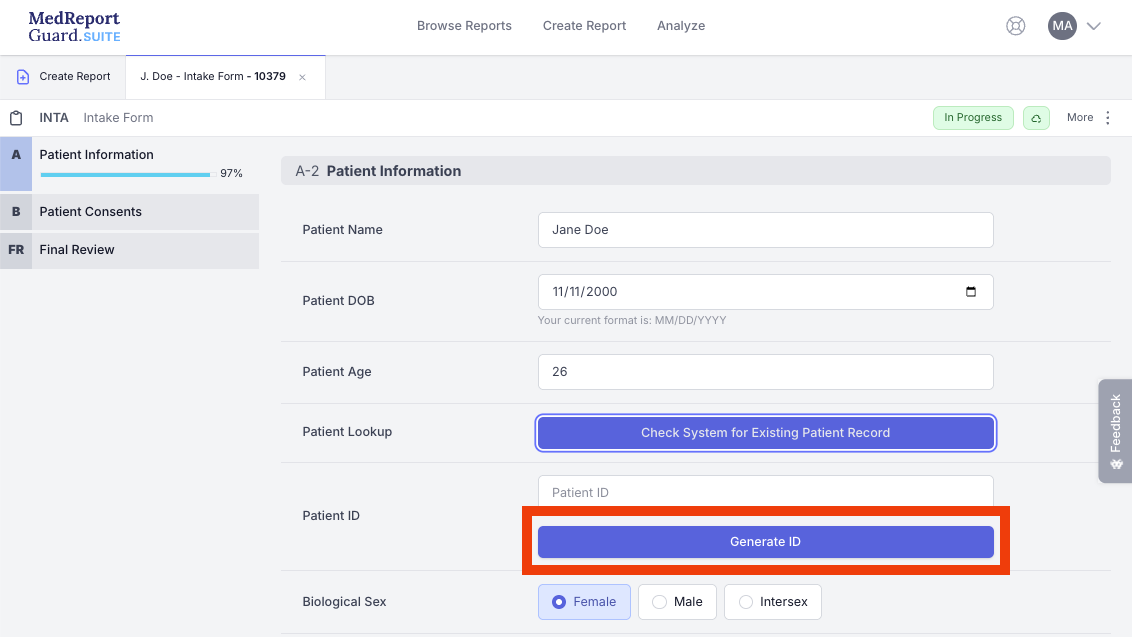
If the patient has not previously been seen by the Iowa SAFE program, generate a new ID, by clicking the "Generate ID" button to generate a new 8-digit identifier:
Step 4: Share Report With Forensic Examiner
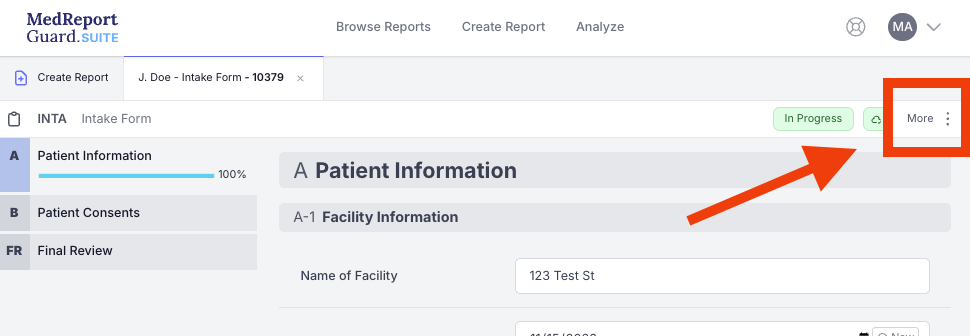
Find the "More" button with the action menu:
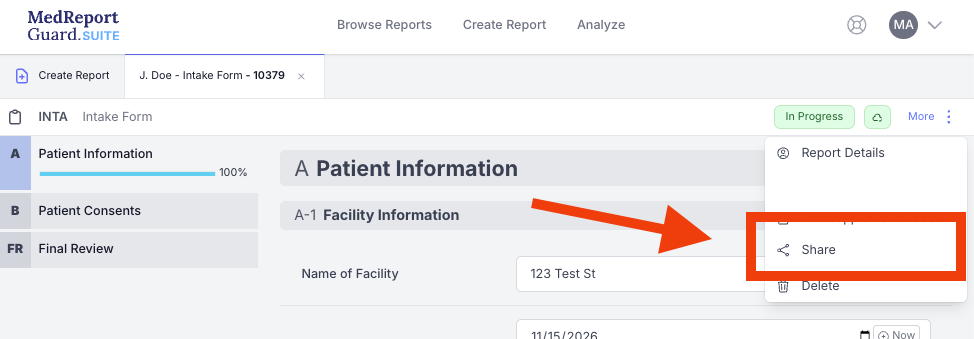
Select the "Share" option:
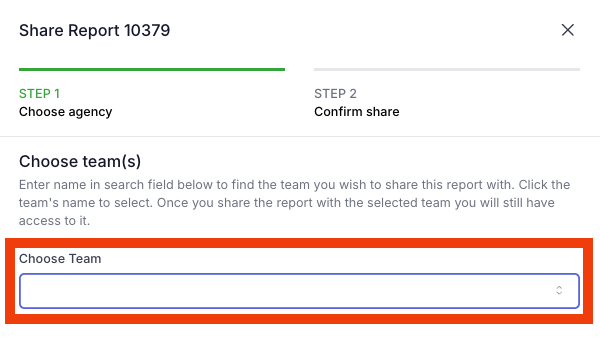
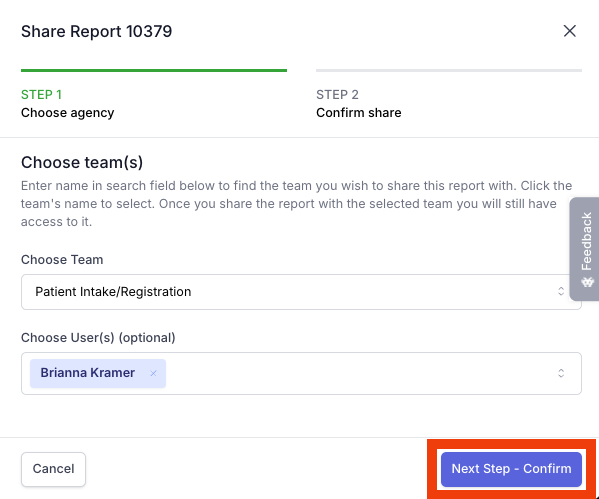
Choose Team as "Patient Registration/Intake":
Next, select the forensic examiner that you would like to notify that the report is ready for them:
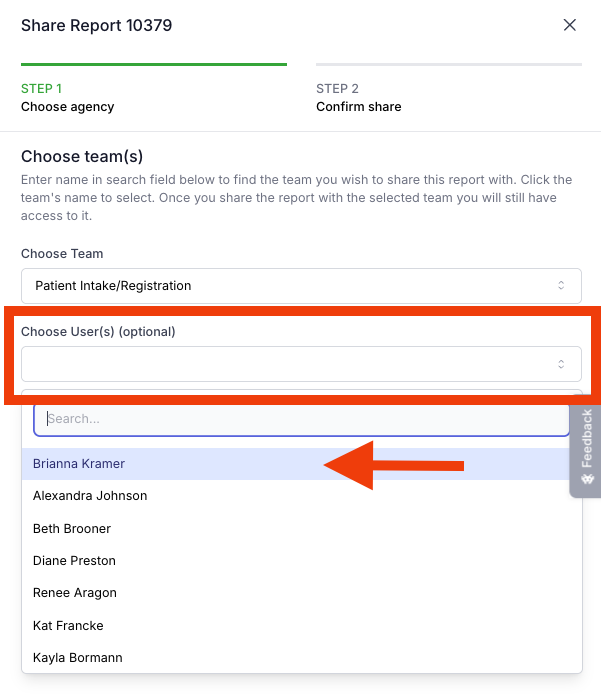
Note: notifications will be generated within the system, as well as generate potential Email and/or SMS notifications depending on the receiving user's notification preferences.
Click "Next Step - Confirm":
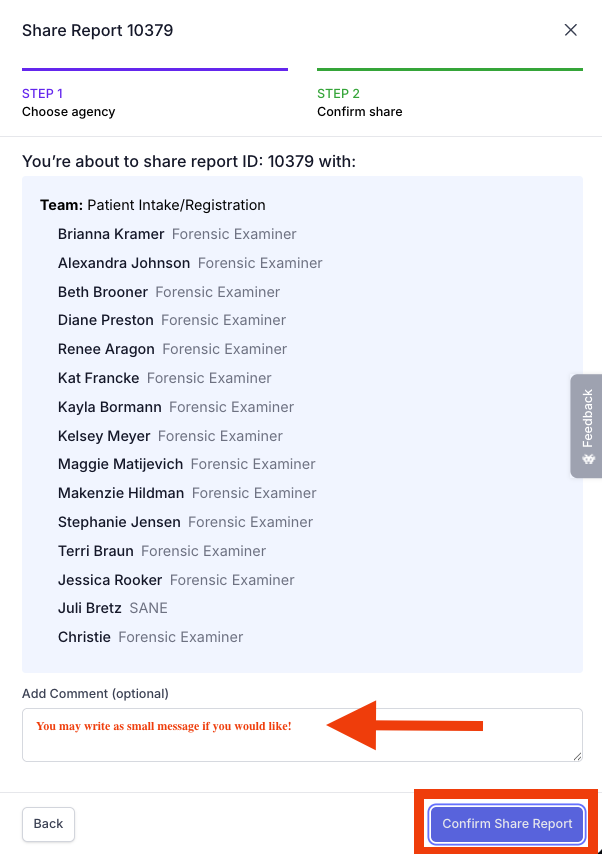
Click "Confirm Share Report" to finalize:
Note that the system will summarize all of the users who will have access to this report after sharing, a safety feature within the system; the only user receiving the notification will be the user identified in the previous step.
Step 5: Our intake is complete! We can now return to the main Browse Reports page:
